Task properties
The PROPERTIES column of the task detail panel is where you tell Empi what a task is and when it has to happen. Most properties are also what the planner reads when it decides where your work lands.
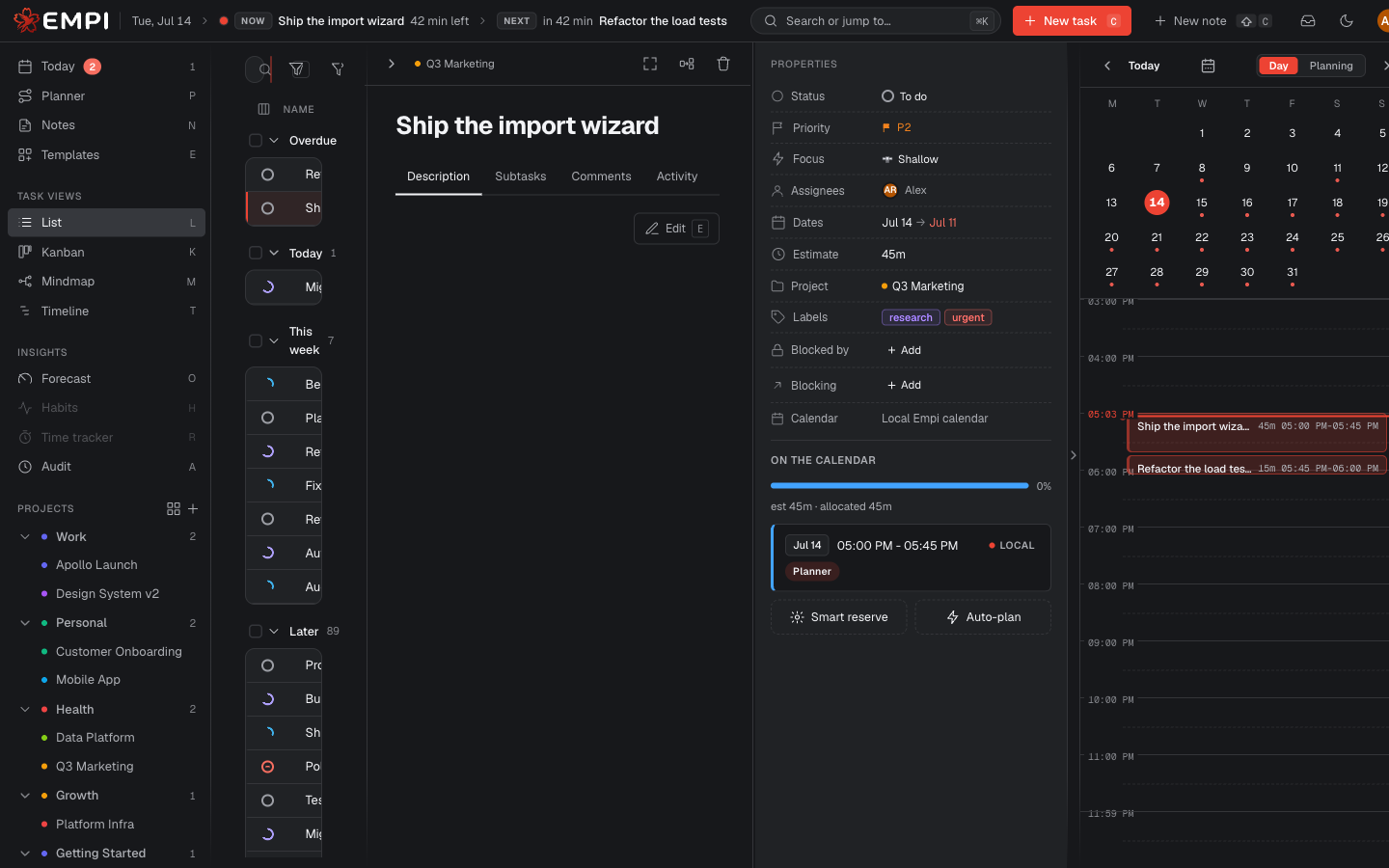
A task needs a due date AND an estimate to be scheduled
Without a due date there is nothing to plan against. Without an estimate there is nothing to fit. A task missing either one is never given calendar time: it appears in the planner's Not planned yet list with the reason ("Needs a due date", "Needs an estimate", or both). Add what is missing and it joins the plan on the next run.
Status
One of Backlog, To do, Doing, In review, Blocked, Done.
Status is how you track progress, not how you gate scheduling. Any status except Done is scheduled, including Backlog: a deadline is a commitment to plan against whatever column the task sits in. Doing is the one status that changes the plan: work you are in the middle of is favoured in the ordering over not-yet-started work, even when its due date is later. Marking a task Done takes it out of the plan and releases its future reserved slots.
Priority
P1 to P4, P1 being the most important.
Priority is a tie-breaker, not a trump card. The planner orders by deadline first, then by how many things you keep open at once, then by priority. Raising a task to P1 does not move its due date, and it never lets it jump ahead of something that is already overdue.
Focus
Deep or Shallow: whether the task needs peak concentration.
Deep tasks are placed inside your peak focus hours first and only spill outside them when those hours are full. Shallow tasks are kept out of your peak hours unless the rest of the day is already taken. This is a soft preference on slot quality only: it never delays a task, changes its order, or misses a due date.
Assignees
Who the task belongs to. The planner only schedules tasks assigned to you. A task assigned to a teammate (or to nobody) still lives in your lists, but it never takes any of your calendar time.
Dates
A Start date and a Due date, both date-only.
- Due is the deadline the planner works back from. The whole working day of the due date is available before the deadline.
- Start is a floor: the planner never books the task before it. A task whose start equals its due is pinned to that one day rather than pulled forward into earlier free time. With no start date, a task can start as early as today.
The date picker offers quick presets: This week, Next week, This month, Next month, This Quarter and Next Quarter. Clear removes the dates again; any reserved slots that no longer fit the new dates are freed automatically.
Estimate
How long the task takes. Pick a preset or type a custom value: 30m, 2h,
3h 30m, 1.5d, 1w all work.
The estimate is the amount of calendar time the planner books. It is also what the coverage bar measures against. If a task has subtasks, its estimate is the sum of its subtasks and is not editable directly (see Subtasks, splits and dependencies).
Note
A task whose estimate is smaller than your minimum slot size gets no reserved block at all. The planner declines to book so small a slice rather than clutter the day with it. See minimum slot size.
Project and area
The project the task belongs to. Projects live inside areas, and the sidebar shows the tree. You can pick an existing project or create one inline from the picker.
The project has no effect on when a task is scheduled. It is how you filter and group your work (and how a task inherits a default calendar, see below).
Labels
Free-form tags. Assign existing labels or create one inline by typing a new name. Labels are for filtering and grouping only, and have no effect on the plan.
Deleting a label removes it from every task that carried it, and cannot be undone.
Blocked by and Blocking
The dependencies of the task: what has to finish first, and what waits on it.
The planner places a task only after everything it is blocked by. See Subtasks, splits and dependencies for how a blocked task is ordered, and what happens when the dates make a dependency impossible.
Calendar
Which agenda this task's reservations are written to. By default a task inherits the calendar from its project or area, and falls back to your default agenda (the built-in Empi Calendar unless you changed it).
Changing the calendar on a task moves every planned time slot it already holds to the new agenda. Empi asks you to confirm before it does that.