Agenda
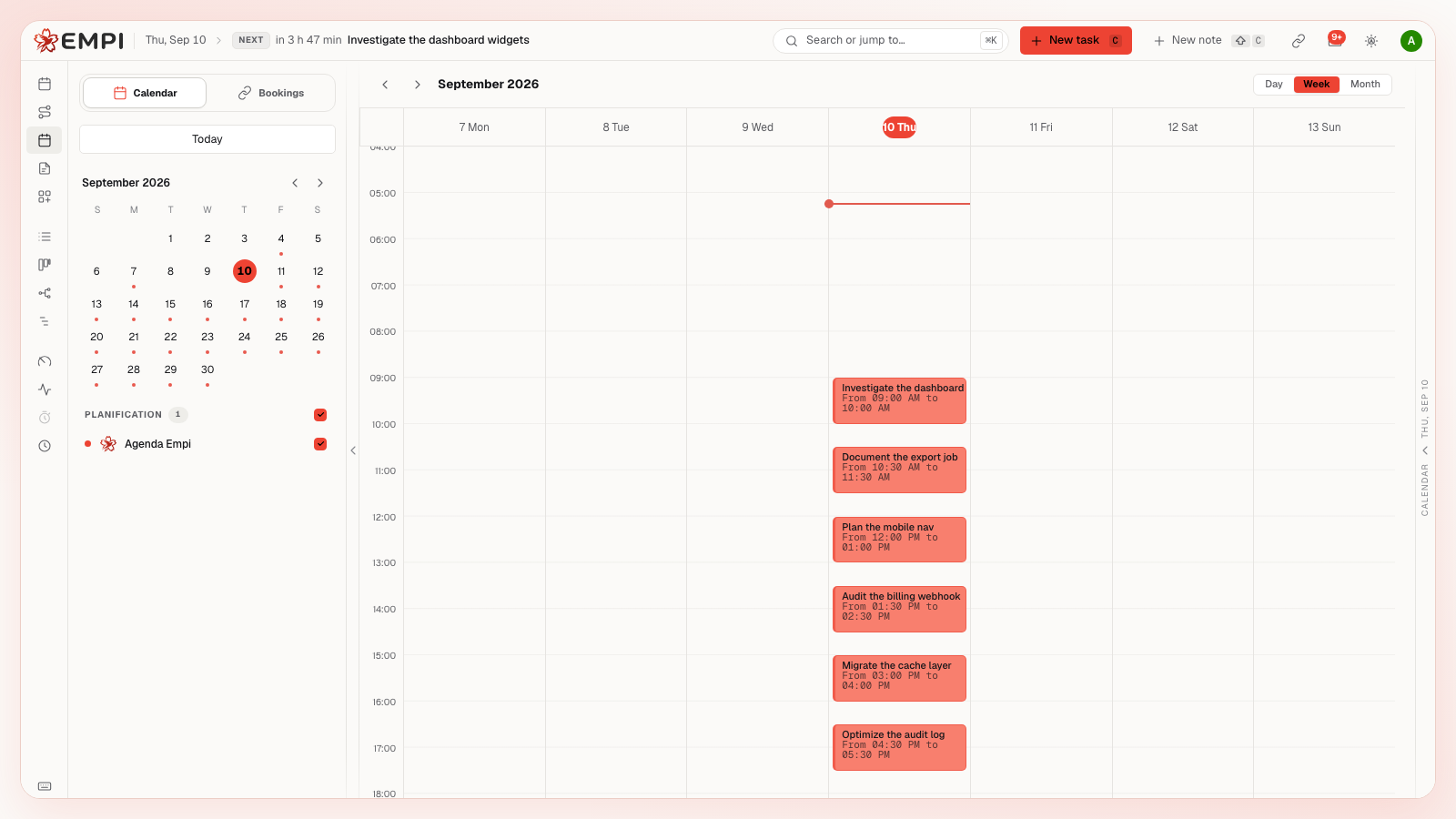
Agenda is the calendar view for work that has a time and work that still needs one. It combines connected calendar events, Empi tasks, focus blocks and booking activity without making one calendar overwrite another.
Change the time scale
Choose Day, Week or Month in the toolbar. Navigate to another date with the adjacent controls, or return to the present with Today. The view keeps the current-time marker, capacity cues and commute or reserve-time information where those apply.
Decide what you see
Use the agenda and event filters to focus the calendar. The embedded calendar rail can be collapsed when you want more space, then restored without changing which agendas are connected. Select an event, task or booking to open its detail sheet and take the relevant action.
Agenda is a view of your connected calendars. To decide which of them affects capacity, see Which agendas count. To connect another provider, see Connecting a calendar.
Create or edit an event
Click an empty time or drag a range in Day or Week to create an event. Choose the calendar, dates and timezone, then add guests, location, notes, conferencing and reminders as needed. All-day dates include the last selected day. Nothing is sent until you choose Create or Save.
Open an existing event to edit it where your provider and access allow. Read-only fields explain their restriction. For recurring events, review whether the change applies to one occurrence or the series. Advanced repeat rules are preserved when left unchanged.
Move and resize
Drag a timed event or reservation to move it. Simple moves save directly; conflicts, neighboring changes and recurrence scope require review. In Day or Week, drag either edge of an editable future timed block to resize it, then confirm the before/after times. Escape closes a focused event’s details. Resizing a task reservation does not change the task estimate.
If a calendar change fails, use the offered retry or reload action. Reload the latest event before editing again after a conflict.
Filter calendars by time slot
The calendar selector groups agendas by their associated time slots, with a full calendar list also available. Both selectors share your visibility choices. You can show or hide declined invitations; declined events do not consume scheduling capacity.
Select a time range to add a note reminder. Upcoming reminders have their own layer. See Note reminders.
Agenda remembers the last time scale you chose. In the calendar rail, select the date to return to today. Use Refresh calendar to refresh events on the selected date from enabled calendar providers.