Capturing notes
Not every thought is a task. A note is for the thing you want out of your head but are not ready to give an estimate and a due date to. Capture it now, turn it into work later, or never.
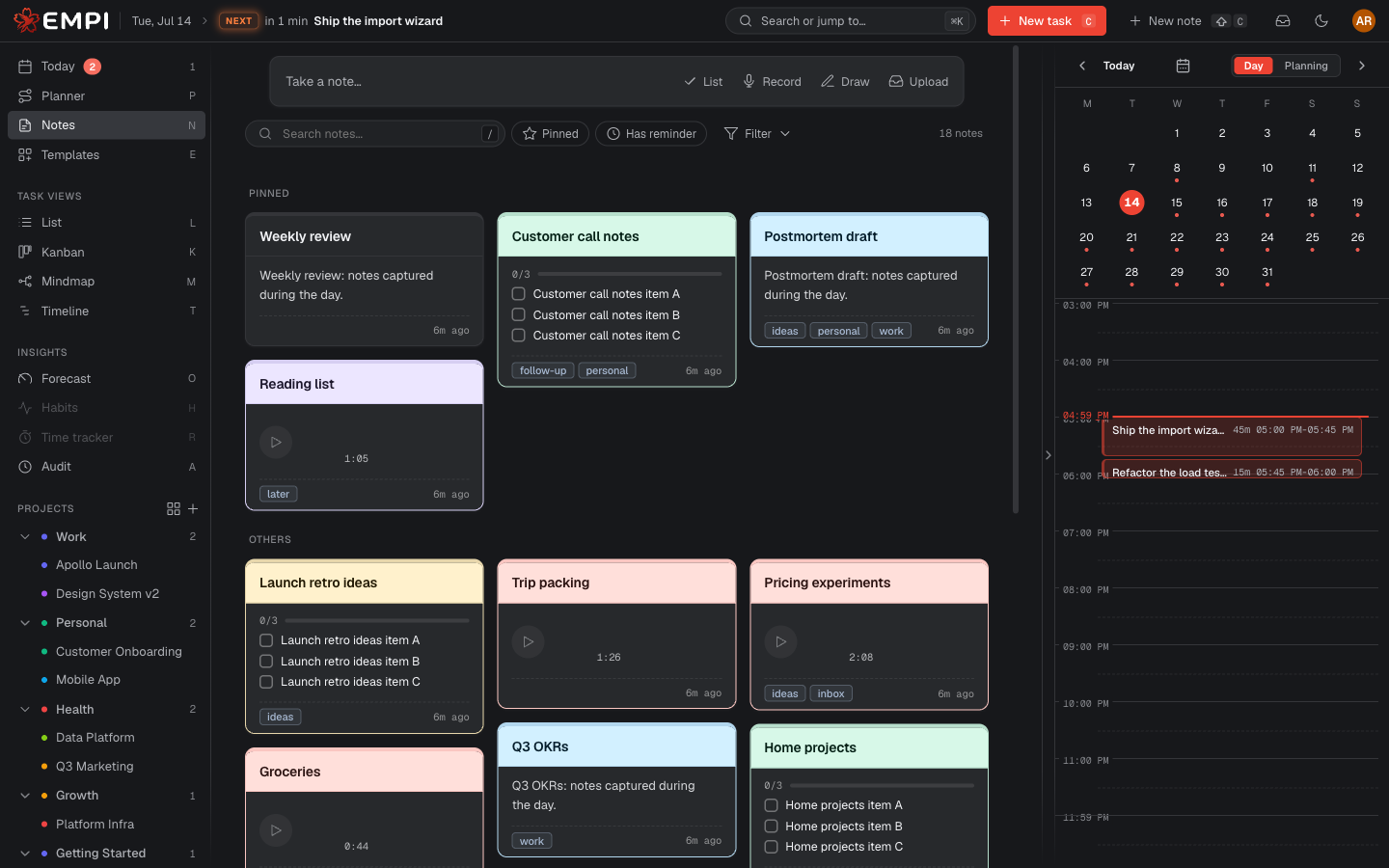
Quick capture
The fastest route is New note in the topbar, or Shift+C from anywhere. The composer opens on "Take a note...": type, and it is saved.
The composer also has quick actions to start in a different shape straight away: List, Record, Draw and Upload.
The notes list
Notes open on a list in two parts: your Pinned notes first, then everything else in a recent-first masonry grid, so a wall of notes stays scannable.
Search across them with the search box, and narrow the grid with the filters: by Type, Project or Labels, or with Show pinned only and Has reminder.
Kinds of note
A note is one of five kinds, and you pick the kind when you create it.
- Text
- A plain note. Nothing in the way.
- Checklist
- A list of items you tick off. Good for a packing list or a shopping run, where the individual lines are not worth being tasks.
- Rich text
- A full editor. Type
/for commands to insert headings, bulleted, numbered and to-do lists, quotes, callouts, code blocks, tables, images, videos, files, steps and more. - Voice
- Record audio in the browser and play it back from the note. Empi can also transcribe the recording into an editable paragraph. Pick the language for one recording before you start, or set your default under Settings > General. For the thought you have while your hands are busy.
- Drawing
- A sketch canvas (Excalidraw). Diagrams, arrows, boxes: the things that are faster drawn than written.
Colors, labels, pinning, attachments
Colors. Give a note one of six colors (Paper, Butter, Rose, Sky, Mint, Lavender) from the note header. Colors are how a note becomes findable at a glance in the grid.
Labels. Tag a note with the same labels you use on tasks, and filter the list by them.
Pinning. Pin a note to keep it at the top of the list, in its own section.
Attachments. Drop files on a note. They are stored with it and stay one search away. The maximum file size and your total storage allowance depend on your plan, and both are shown on your plan card. See Plans and billing.
Drafts are not lost
Empi autosaves what you are writing as you write it. If you close the composer by accident, navigate away, or the tab goes down, the next time you open it you get your work back, with a "Draft restored from a previous session." notice.
Turning a note into a task
When a note turns out to be work after all, use Convert to task (from the note header, or from the note's menu in the list). Empi creates the task from the note's content, and you fill in the properties that make it schedulable, its estimate and its due date. See Tasks.
You get to choose whether to keep the original note. If you do, the note stays in your list alongside the new task. If you do not, the source note is consumed by the conversion and disappears from your notes.
Deleting
Warning
Deleting a note is permanent. There is no trash and no restore. Empi will ask you to confirm, and once you do, the note is gone for good.
A note can also carry a reminder, so it comes back to you at the moment it matters.