Planner
The Planner is where Empi schedules your work for you. It previews when each task gets done, deadlines first. Nothing is booked until you apply.
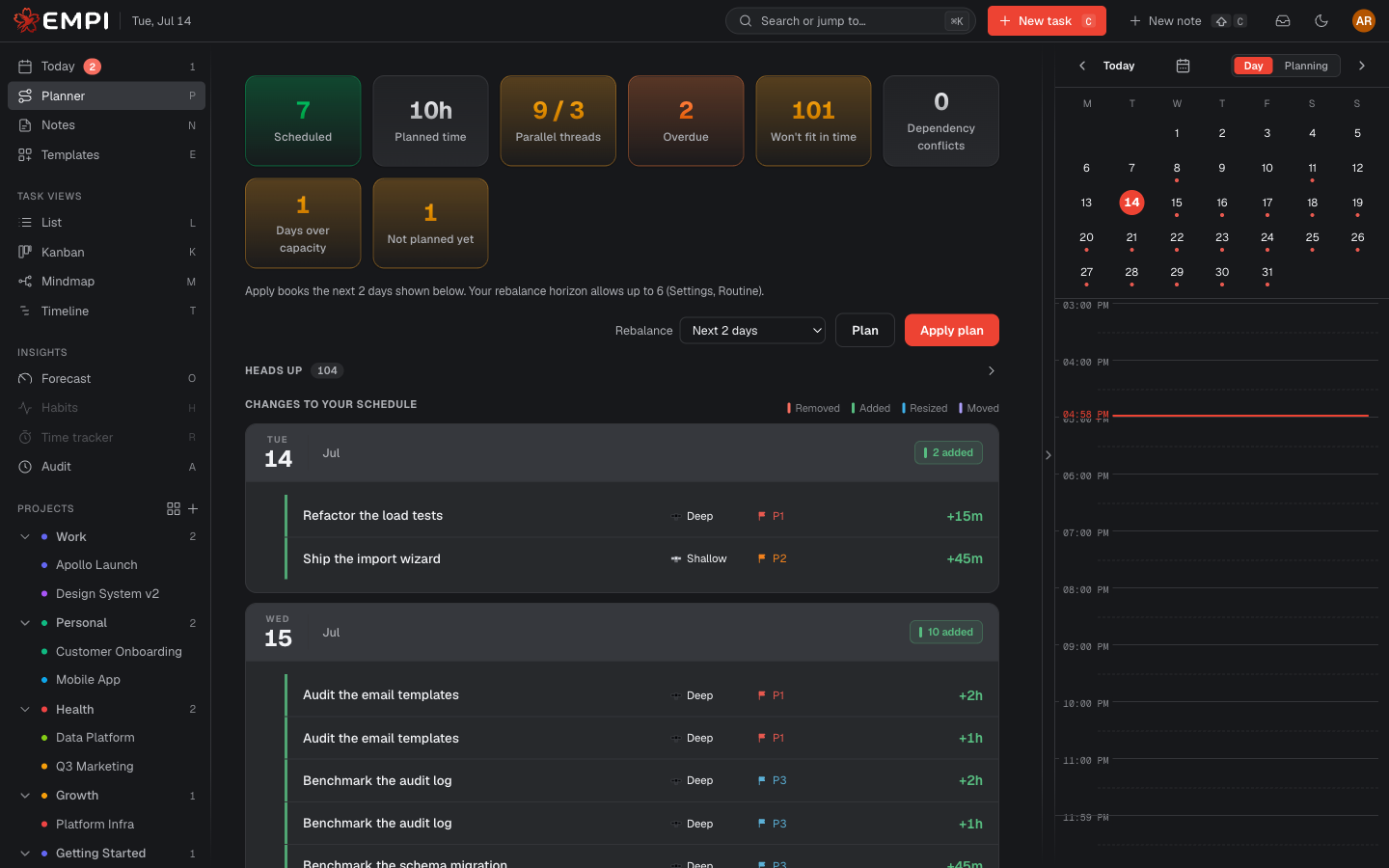
This page covers the view. For how the planner decides what goes where, read Planning.
Plan summary
A strip of tiles across the top tells you the shape of the plan at a glance.
| Tile | What it means |
|---|---|
| Scheduled | Tasks the planner placed somewhere in this plan |
| Planned time | Total focus time the plan reserves across all days |
| Parallel threads | Peak number of tasks worked at once on the busiest day, against your target |
| Overdue | Tasks whose due date is already in the past |
| Won't fit in time | Tasks that cannot finish on or before their due date |
| Dependency conflicts | Tasks a dependency makes impossible to schedule on time |
| Days over capacity | Days packed with more work than their free focus time |
| Not planned yet | Tasks left out for a missing due date and/or estimate. Click it to jump to them |
Rebalance, Plan, Apply plan
- Rebalance picks how far ahead the plan reaches: Today only, Next N days, or the full horizon. Your maximum horizon is a setting (Settings, Routine).
- Plan recomputes the preview with the latest state of your calendar. It takes a few seconds and it changes nothing.
- Apply plan turns the preview into real calendar reservations. This is the only button that writes to your schedule.
When applying would rearrange reserved time you already had, Empi asks first ("Rearrange reserved time?"). Blocks you placed by hand are never touched.
Apply an unchanged plan and nothing happens: the view simply reads "Your schedule already matches the plan, nothing to change."
HEADS UP
A collapsible warnings panel. Empi never hides a problem by quietly dropping a task. Warnings you can see here:
- Overdue: already past its due date, scheduled first.
- Won't fit in time: cannot finish before its due date with the capacity you have.
- Too many at once: it fits, but it needs more parallel threads than your target.
- Dependency conflict: something it depends on is due later, or it sits in a dependency cycle.
CHANGES TO YOUR SCHEDULE
The change set: exactly what an apply would do, grouped by day. Each block is tagged Removed, Added, Resized or Moved, so you can read the diff before you commit to it.
NOT PLANNED YET
Tasks the planner had to leave out because they are missing what it needs. Each one says why: Needs a due date, Needs an estimate, or Needs a due date and an estimate. Add details takes you straight to the task. Fill the gap and it appears in the plan above.
Tip
An empty planner almost always means empty estimates. A task with no estimate has no size, and the planner cannot reserve time for something with no size.