Connecting a calendar
Empi plans around your real schedule, so it needs to see your meetings. Connect the calendars you actually live by, and the planner stops booking focus time on top of them.
The providers
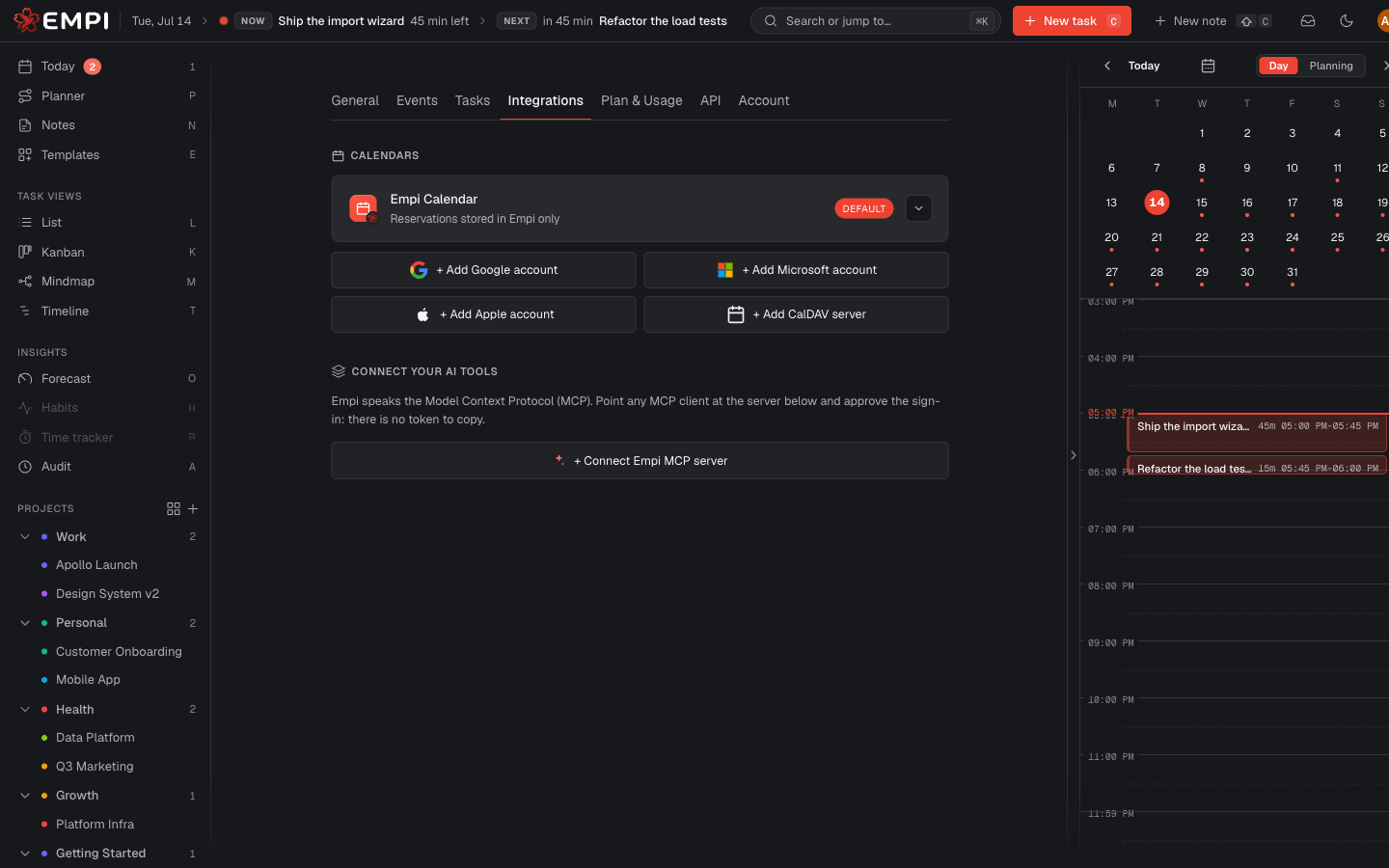
Calendars live in Settings > Integrations, under Calendars. The setup wizard offers the same list on its Calendars step.
| Provider | How you connect it |
|---|---|
| Empi Calendar | Built in, always active, marked Default. Reservations stored in Empi only. Nothing to connect. |
| Google Calendar | + Add Google account, then approve the Google sign-in. |
| Microsoft Calendar | + Add Microsoft account, then approve the Microsoft sign-in. |
| Apple Calendar | + Add Apple account. Apple does not support a calendar sign-in flow, so you paste an app-specific password created at Apple Account. |
| CalDAV | + Add CalDAV server: your server URL plus your account credentials. Works with Fastmail, Nextcloud, and any CalDAV server. |
Apple Calendar guide
Choose + Add Apple account in Settings > Integrations or in the Calendars step of the setup wizard. Both open the same guided setup.
Do not use your Apple Account password
Empi will never ask for your Apple Account password. Apple requires an app-specific password for iCloud Calendar access instead.
-
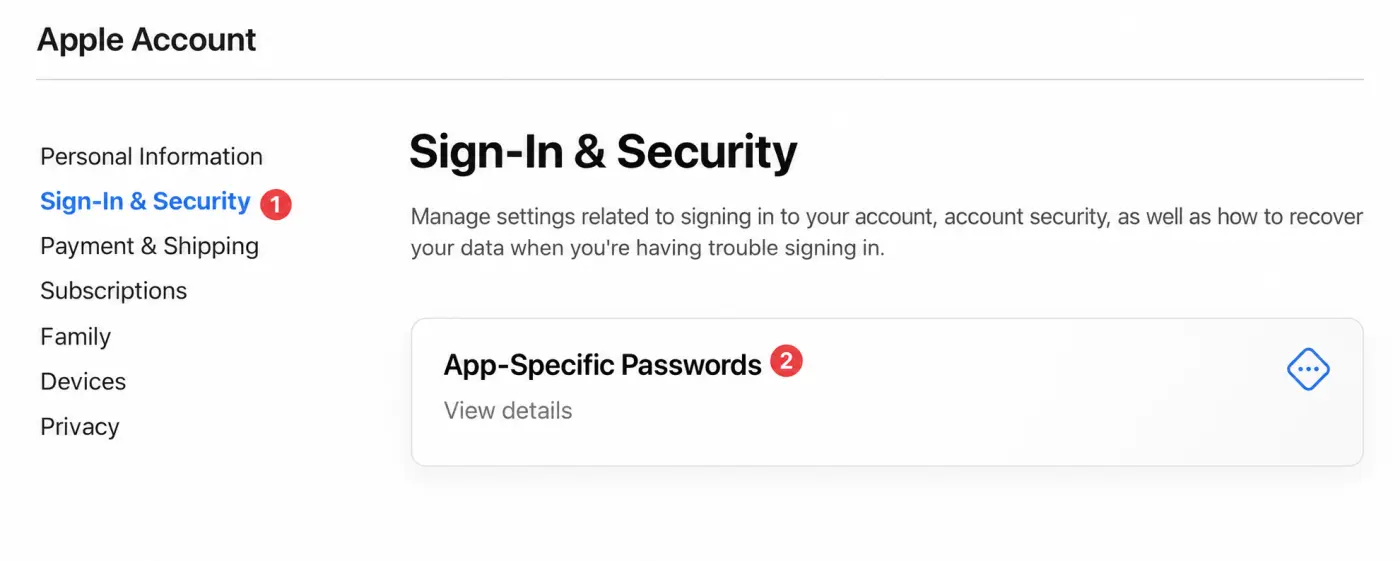
Open Apple Account, sign in, then select
Sign-In & Security.
-
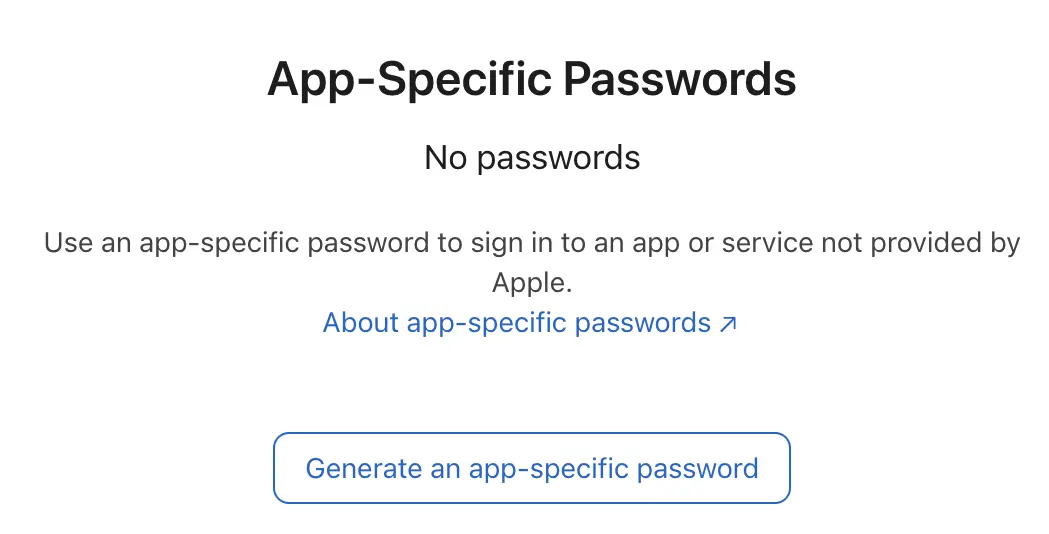
Open App-Specific Passwords and select the option to generate
a password. Apple requires two-factor authentication before you can create or
use an app-specific password. If this option is missing, enable two-factor
authentication, then return to this step. Learn more from Apple.
-
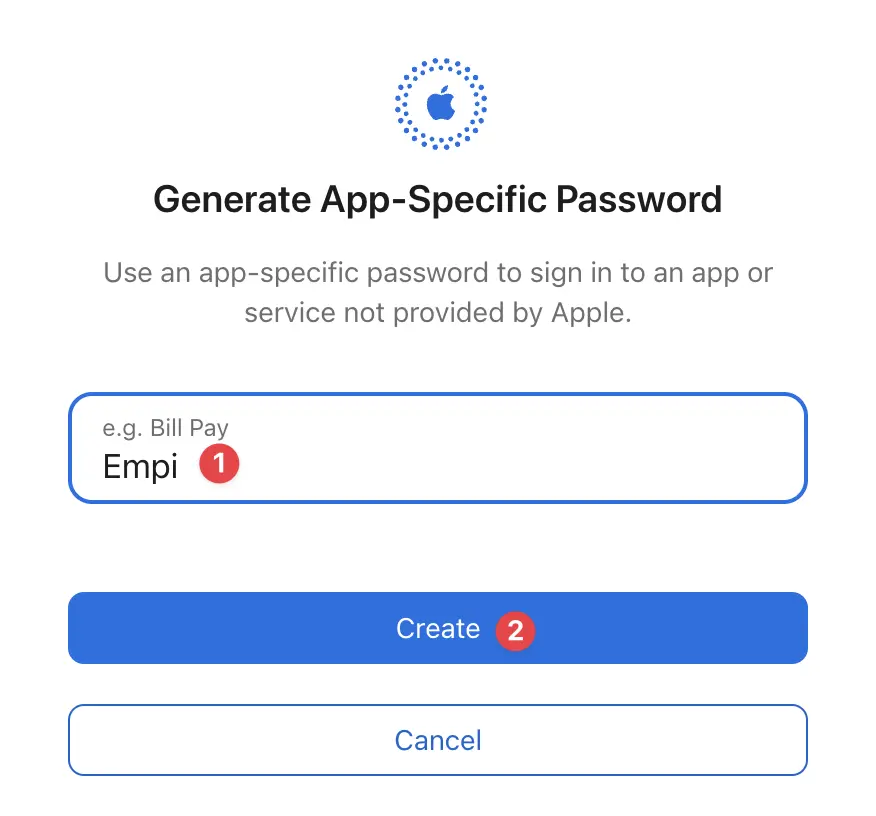
Name the password Empi, then create it.
-
Copy the password immediately. Apple will not show it again.
The example below is fictional. Never send your real password to support.
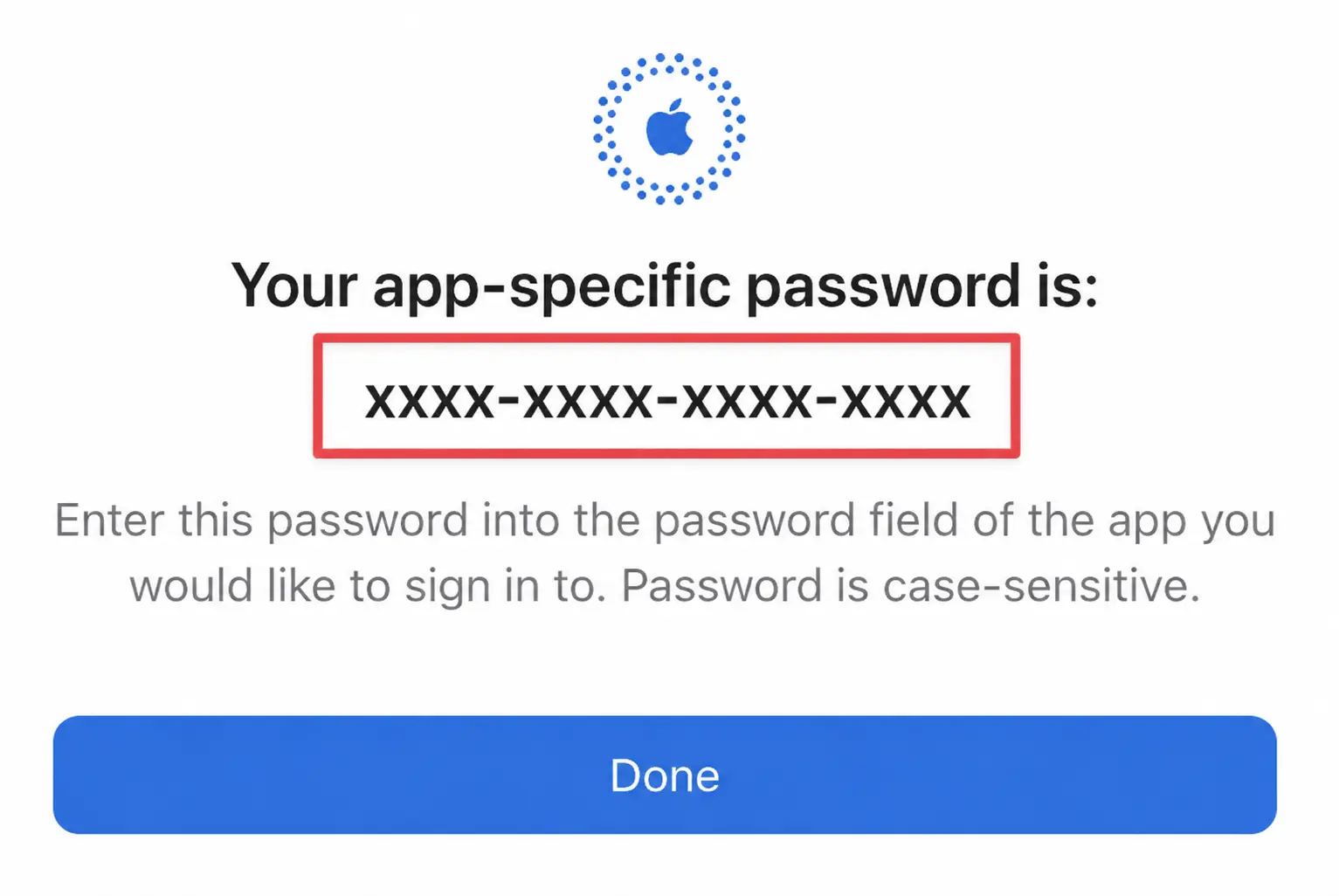
- Return to Empi and enter your Apple Account email address and the app-specific password. Select Connect iCloud.
Empi Calendar is where reserved task time goes if you connect nothing. It is the default calendar for tasks and cannot be turned off while it holds your reservations. It is not a place your meetings arrive from: it holds the time Empi books for you.
Connect as many accounts as you like. Each account brings in its own agendas (the individual calendars inside it), and you decide one by one what each of them does. That is the next page.
What Empi reads
From each connected account Empi reads your events: their time, title, location, notes, and any conference link. It uses them for three things:
- To know when you are not available, so it never books work over a meeting.
- To know how loaded a day already is, before it adds any task time.
- To work out the travel time around events that have an address.
Empi never lets a connected calendar overwrite your tasks. The flow of task time is outbound only: when a task's reserved time belongs on one of your own agendas, Empi writes it there so it shows up in your usual calendar app.
Live updates
Once an account is connected, Empi follows it. Move a meeting in Google, and the change lands in Empi without you doing anything: the day grid, the Today view and the planner all see the new time. You do not have to re-import anything.
If you want to force a check right now, use Refresh on the account in Settings > Integrations.
When access expires
A calendar account can lose its access: you change your password, revoke the app, or the provider simply expires the session. When that happens Empi shows a banner at the top of the app, for example "Google Calendar disconnected", with the note "Your Google session expired. Reconnect to keep events in sync."
Click Reconnect in the banner and sign in again. Nothing is lost while the connection is down: your agendas, their settings and your reservations stay where they are, and events resume syncing as soon as you reconnect.
Tip
While a connection is broken, task time that would normally appear on your own agenda is still shown in Empi, so a task never silently disappears from your day.
Removing an agenda that no longer exists
If you delete a calendar in Google (or elsewhere), the agenda stays in your Empi list but is flagged unavailable. Open the account, find it, and use Remove. Empi asks to confirm ("Remove this agenda?") and explains what it does: removing it deletes it from Empi only, and your calendar data with the provider is untouched.
To drop a whole account, use Disconnect on it. Its events stop syncing. You can keep the agenda configuration for a future reconnect, so if you connect the same account again your enabled agendas and their settings come back.
Next: which agendas count, the single most important calendar decision you will make.