Forecast
Forecast looks ahead. It projects where your tasks land, tells you which deadlines are at risk, and lets you try fixes before you commit to any of them.
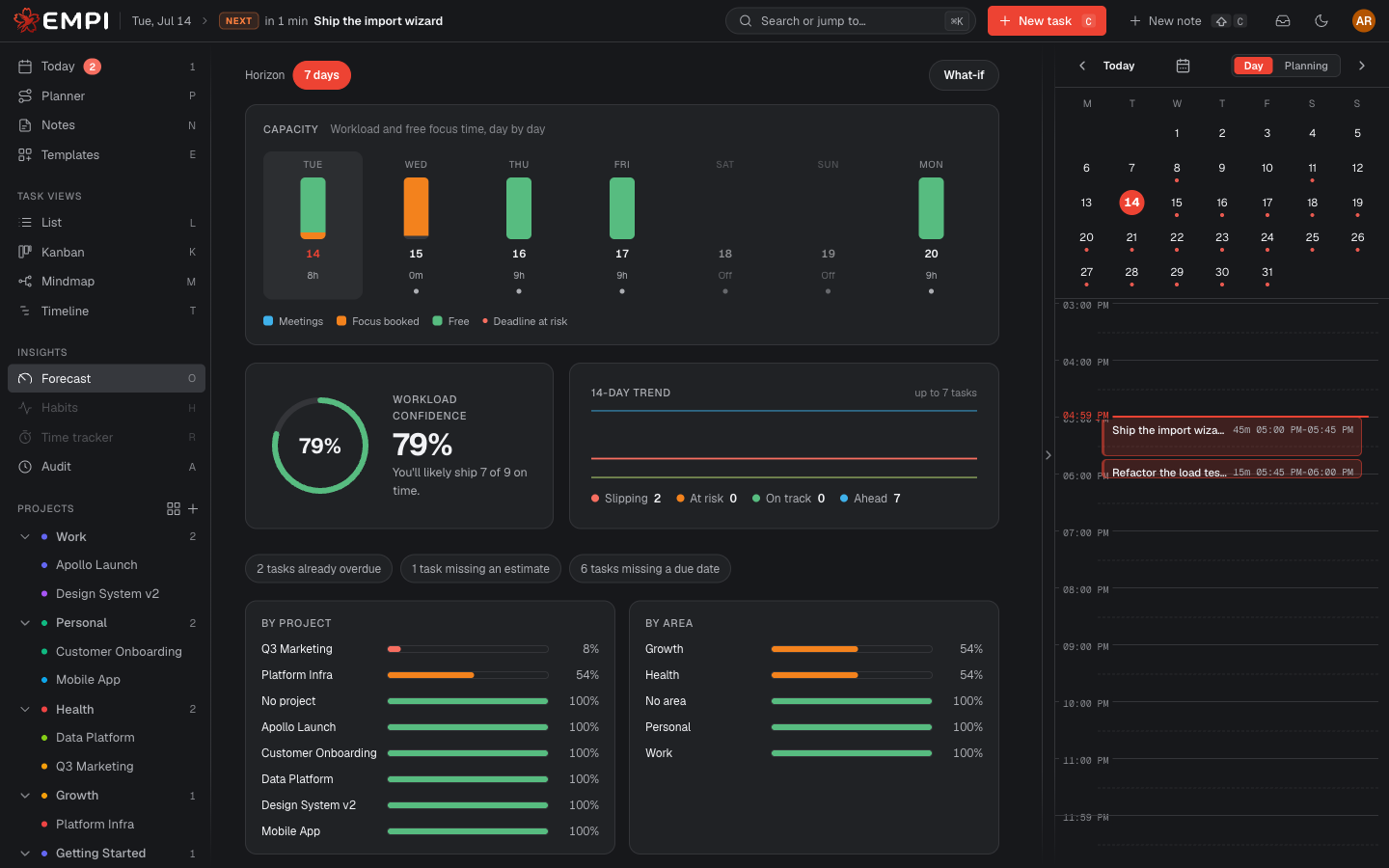
Capacity over the horizon
The Capacity graph shows workload and free focus time, day by day: Meetings, Focus booked and Free, with an overload marker on days where the work exceeds the day's capacity, and a flag on days carrying a deadline at risk.
The Horizon selector picks how far ahead you look. It is plan-dependent: 7 days on Free, 90 days on Pro.
Rollups
Below the graph, the same outlook is rolled up By project and By area, so you can see which slice of your work is dragging the number down instead of scanning task by task.
What's putting delivery at risk
The risk drivers panel names the causes, in plain language: a day overloaded by N hours, tasks blocked by a dependency, tasks already overdue, tasks missing an estimate, tasks missing a due date. This is the list to work through: fix these and confidence moves.
A Recommended actions by tasks table goes one level down, giving each at-risk task a recommendation: unblock or descope, ask for an extension, pair up to catch up, pull the next task forward, or on track, keep going.
Tasks with no due date or no estimate cannot be forecast at all. They are listed separately under Needs input to forecast.
Confidence and the trend
Workload confidence is how likely your tasks are to finish on time, based on the free work hours you actually have before each one is due. Empi states it plainly: "You'll likely ship 9 of 12 on time."
Each task falls into a band: Ahead, On track, At risk, or Slipping. The 14-day trend shows how confidence has moved over the last two weeks, which tells you whether things are getting better or quietly getting worse.
Scenario Studio
The studio at /app/forecast/studio is a sandbox. Nothing is saved and nothing is
booked until you choose to apply.
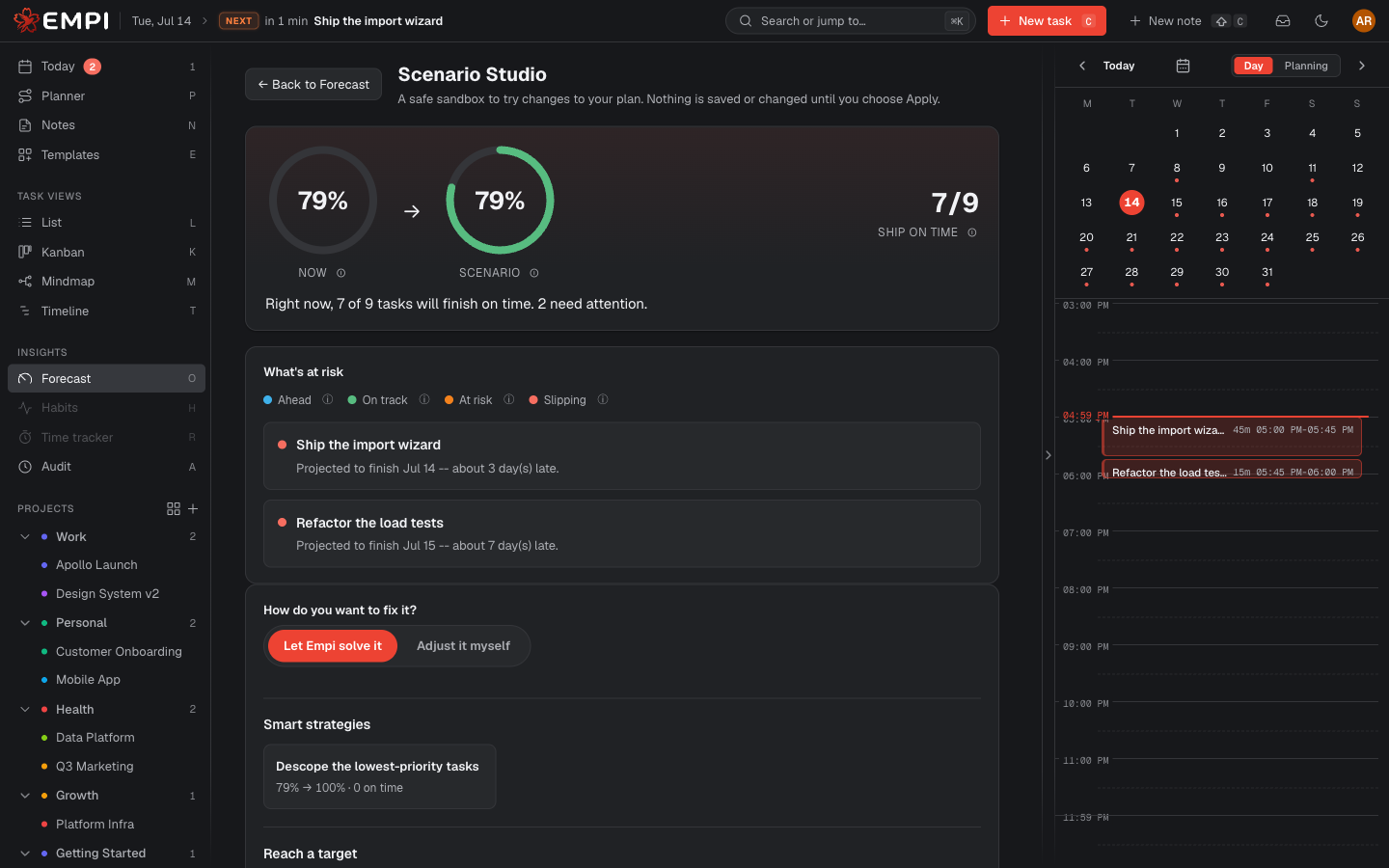
What-if simulation
Reshape the plan and watch the outlook react live, side by side (Now against Scenario):
- Push due: give a task more time.
- Trim estimate: assume a task takes less work.
- Descope: drop a task from this plan.
- Priority: change how important a task is.
- Extra focus / day and Add a focus day: pretend you have more capacity.
Smart strategies are ready-made plays you can load in one click: descope the lowest-priority tasks, buy a focus day, push soft deadlines out, trim the biggest estimates. Each shows its impact before you take it.
Goal-seek
Under Reach a target, set a confidence target and press Solve. Empi finds the smallest set of changes that gets you there and loads them into the preview. If the target is out of reach, it says so and shows you the closest plan it could find.
Applying a scenario
Apply to plan turns the scenario into real edits: your tasks are updated and your plan is re-booked. Empi lists exactly what will change and asks you to confirm first.
Note
Capacity tweaks (extra focus time, extra focus days) are exploration only. They are never applied, because Empi will not invent hours you do not have.
Saved scenarios
Name a scenario and Save it to keep it around. Saved scenarios can be loaded back at any time from the same panel, which makes them useful for the "what if we add a person" or "what if this slips a week" conversations you have more than once.
Note
Scenarios themselves are available on every plan. What the plan changes is how far ahead you can look: the forecast horizon is 7 days on Free and 90 days on Pro. See Plans and billing.