Reserving time
A plan is a proposal until it is on a calendar. There are four ways a task gets real time, from "let Empi do all of it" to "book this exact hour".
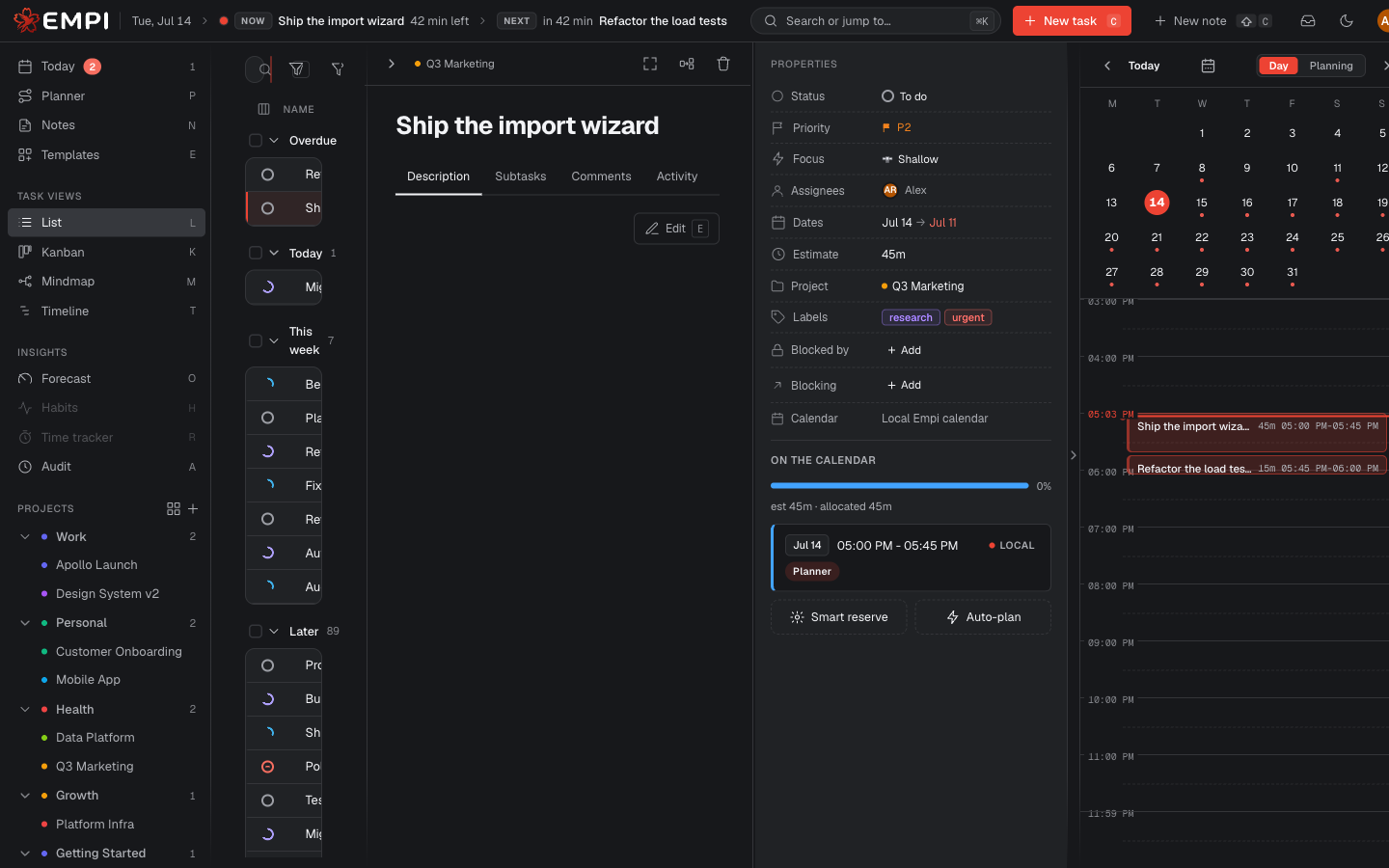
1. The planner (all your tasks at once)
The bulk route, and the one to use by default. From the Planner view:
- Plan recomputes the proposal with the latest state of your calendar.
- Changes to your schedule shows exactly what an apply would do, grouped by day, with what is added, removed, resized and moved. Nothing has been written yet.
- Apply plan books it. The result reads "Booked N, reclaimed N", and running it again on an unchanged schedule says "Your schedule already matches the plan, nothing to change."
Applying is deliberately low-churn. Blocks that are already in the right place are left exactly where they are, blocks the plan moves are rewritten, and blocks that should not exist any more are reclaimed. Applying twice in a row changes nothing the second time.
The Rebalance selector (Today only / Next N days / Full horizon) sets how far ahead this apply books. It never books past your rebalance horizon.
Two things free up reserved time automatically:
- Marking a task Done releases its future slots. The time goes straight back into your capacity, and the next plan pulls other work forward into it.
- Changing a task's dates reclaims the slots that no longer fit inside them. Empi tells you when it does ("Freed 2 earlier slots").
2. Auto-plan (one task)
Auto-plan, in the ON THE CALENDAR section of the task panel, books this one task into the earliest free slots that fit its estimate before its due date. It takes free time only.
The task needs an estimate so Empi can size the block. Auto-plan is not available on a task with subtasks: reserve each subtask instead.
An auto-planned block stays the planner's to manage. It carries the Planner badge, and a later plan may move it to give more urgent work an earlier slot.
You can also auto-plan at creation time: set Schedule to Auto in the new-task modal.
3. Smart reserve (pin a slot)
Smart reserve, next to Auto-plan, opens the Reserve time picker. You give it a Duration and a When (Today, Tomorrow, This week, Next week, In 1 week, In 2 weeks) and Empi offers the free slots that fit, with Next available first. Options that fall after the task's due date are outlined so you can see you are booking late.
The picker also carries:
- Only during my availabilities, which restricts the suggestions to your time-slot windows.
- The Calendar the block is written to.
- Visibility (Public / Private) and Show as (Busy / Free), see below.
A smart reserve is pinned. It reduces what is left to schedule for that task, and the planner books around it and never moves or deletes it. Only you can. It carries the Smart reserve badge.
Smart reserve works without an estimate, which makes it the way to give calendar time to a task you have not sized.
4. Manual reserve (pick an exact window)
Use Pick manually inside the Reserve time picker (or Pick a time as the Schedule mode in the new-task modal) to book an exact date and time window yourself. The duration comes from the window you pick, so no estimate or due date is needed.
Unlike Auto-plan, an urgent or manual reserve does not restrict itself to free time. It bumps other work to make room, but only work the planner placed, and only what it has to move:
- Meetings, and any block you pinned by hand, are never touched. If your window collides with one, Empi refuses the booking rather than steal the time.
- Planner-placed blocks in the way are moved. Empi shows you a displacement preview first ("Rearrange your schedule?"), day by day, listing every block that would move and every task it belongs to, and books nothing until you Confirm & schedule. You can also leave the task unscheduled instead.
- When the window is already free, there is nothing to confirm: Empi just books it.
- A bumped task is rebooked up to its own due date. If one of its blocks cannot be reproduced in time, it is reported in the preview rather than silently dropped.
A manual reserve is pinned from then on, exactly like a smart reserve.
Per-slot controls
Every reserved slot listed under ON THE CALENDAR carries:
- Its origin badge: Planner (placed by the planner or by Auto-plan, and movable by a later plan) or Smart reserve (placed by you, pinned, never moved).
- Its date, its time range, and the agenda it lives on. A block that failed to reach a connected calendar says so, and offers Retry sync.
- Remove reservation, which deletes the block and its calendar event, and hands the time back.
Past slots are kept under Past allocations as history, and are not removed when the task is completed.
Visibility and show-as
Two properties travel with every block onto the calendar it is written to:
- Visibility: Public (other people see the block's details) or Private (they see that something is there, not what).
- Show as: Busy or Free. Busy blocks make you unavailable to the people who look at your calendar. Free ones do not.
Set them per reservation in the Reserve time picker, or set the defaults for every new block in Settings, under Events.