Creating and editing tasks
A task is the unit Empi plans with. This page covers how you create one, what the task detail panel holds, and how to complete or delete it.
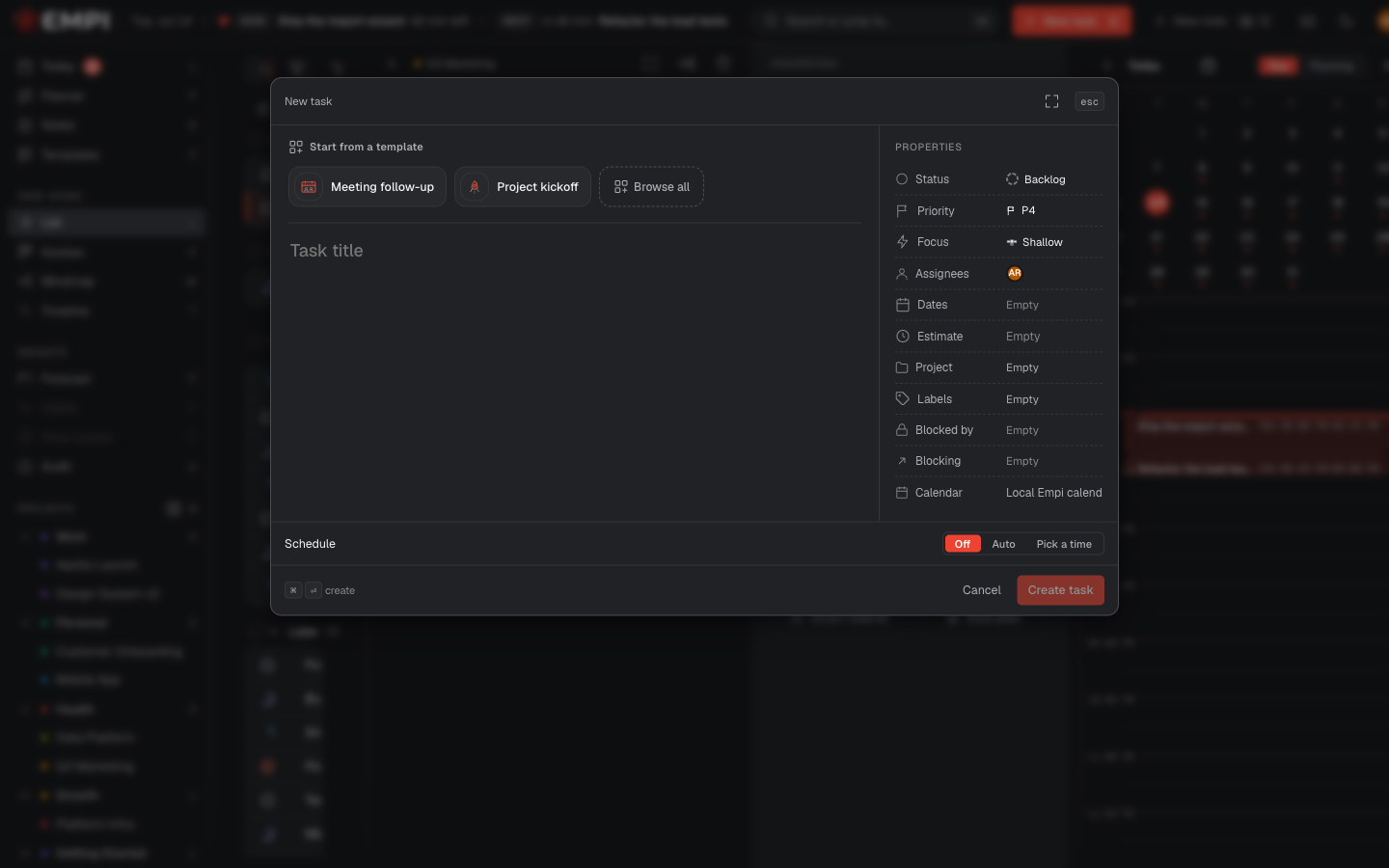
Create a task
Press C anywhere in the app, or click New task in the topbar. The modal asks for a title and lets you set the properties right away.
The Start from a template strip at the top of the modal prefills the properties (priority, focus, status, estimate, project, labels, and a default description) from a saved preset. See Templates.
A task needs a due date and an estimate before the planner can schedule it. You can set both in the modal, or later in the detail panel. The Schedule control in the modal decides whether the new task gets calendar time immediately: Off, Auto (auto-plan it into the earliest slot before its due date), or Pick a time (reserve an exact window). See Reserving time.
The task detail panel
Click a task anywhere (Today, List, Kanban, Timeline, Planner) to open its panel.
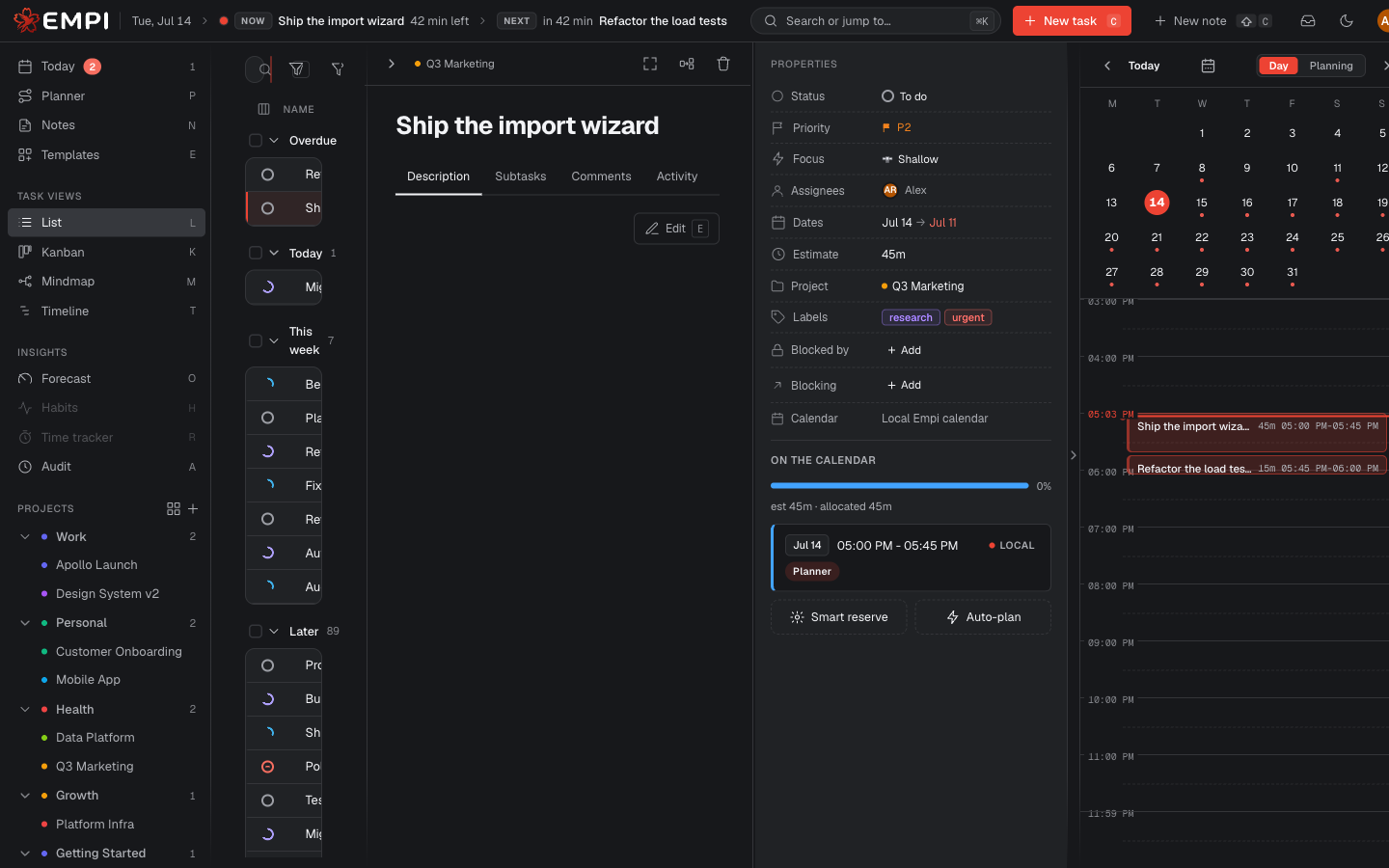
The panel has four tabs:
- Description -- the body of the task. Press E or click Edit to write it. Descriptions are markdown: headings, lists, bold, links, and code blocks round-trip safely.
- Subtasks -- break the task down. See Subtasks, splits and dependencies.
- Comments -- a thread on the task. Write a comment, edit it (it is then marked "(edited)"), or delete it. Deleting a comment is permanent.
- Activity -- the trail of what changed on this task and when.
On the right, the PROPERTIES column holds Status, Priority, Focus, Assignees, Dates, Estimate, Project, Labels, Blocked by, Blocking and Calendar. Each one is a dropdown you can search. Task properties explains what every property does and how the planner reads it.
You can drag the divider to make the properties column wider, and double-click it to reset the default width.
ON THE CALENDAR
Below the properties, the ON THE CALENDAR section shows the real calendar time this task holds:
- A coverage progress bar, reading for example
est 45m · allocated 45mwith a percentage. The estimate is what you said the task takes; the allocated figure is how many minutes are actually reserved on a calendar for it. At 100% the task is fully booked. Below 100% part of it is still unscheduled. If you reserve more time than the estimate, the bar shows the surplus as+15m extra(over-booked). A task with no reservations at all shows nothing allocated. - The list of reserved slots, each with its date, time range, the agenda it lives on, and an origin badge (Planner or Smart reserve).
- Two buttons, Smart reserve and Auto-plan.
Both buttons and every per-slot control are covered in Reserving time.
If the planner could not place this task properly, the reason is shown here on the task itself, not only on the Planner: for example that there is not enough working time before its due date to fit it, or that it will not fit before its due date even on its own. You do not have to go hunting through the Planner's warnings to find out why one task is stuck.
Complete and reopen
Tick a task's checkbox in any list, or set its Status to Done in the panel. Marking a task done releases its future reserved slots, so the time goes back into your capacity for other work. Past reservations stay as history.
Reopening is the same move in reverse: set the status back to To do (or any other active status). The task becomes schedulable again and the planner books it on the next plan.
Bulk actions
In the List and Kanban views, select several tasks (their checkboxes) to get the bulk action bar. From it you can set labels, set a due date, set assignees, set a project, split, and delete. Setting assignees or labels in bulk replaces the current values on every selected task.
Delete a task
Use Delete task in the panel, or the bulk bar. Deletion asks for confirmation and tells you exactly what goes with it: the subtasks it will take down, how many future calendar slots will be removed, and how many past reservations are kept as history. You can choose to keep the future reservations on your calendar and delete only the task.
Warning
Deleting a task is permanent. There is no trash and no restore.
Tip
If you never want the confirmation, turn on the skip-confirmation toggle in Settings, under Tasks.