MCP server
Empi speaks the Model Context Protocol (MCP), so an AI assistant can read and manage your tasks and notes directly. You ask, it does the work in your workspace.
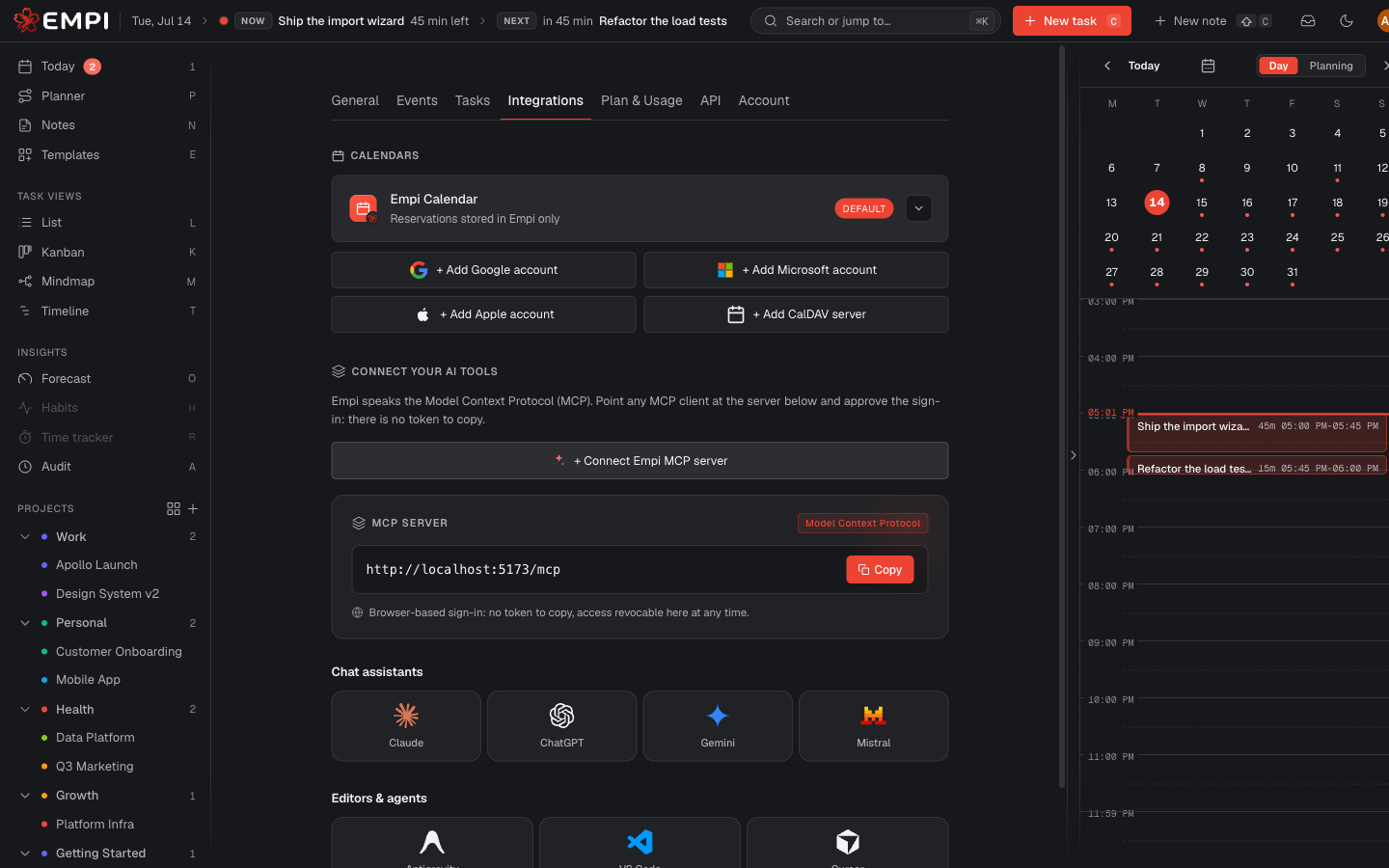
Connect a tool
- Open Settings > Integrations and find Connect your AI tools.
- Pick your client. The page lists tiles for chat assistants (Claude, ChatGPT, Gemini, Mistral) and for editors and agents (Antigravity, VS Code, Cursor), each with the exact steps for that tool.
- Point the client at the Empi MCP server URL shown on the page.
- Approve the sign-in that opens in your browser, and confirm the access on the consent screen.
There is no token to copy. Empi never asks an AI tool for your password. You approve the access yourself in the browser, and the tool appears under Connected tools with the date it was connected and when it was last used.
Revoke access
Click Disconnect on any connected tool. It loses access to your workspace immediately. You can reconnect it later at any time.
What you can ask for
Once connected, your assistant can work with your workspace in plain language:
- Create tasks, with a due date and an estimate.
- Find tasks, and read the details of one.
- Update a task, assign it to a project, and mark it complete.
- Create, read and update your notes.
- Look at your day and at your plan.
For example: "add a task to review the Q3 budget, due Friday, 2 hours, in the Finance project", or "what am I supposed to do today?".
Good to know
- MCP requests are unlimited on every plan, including Free. See Plans and billing.
- Everything an assistant does is recorded in your activity log and labelled as coming from MCP, so you can always review what it changed.